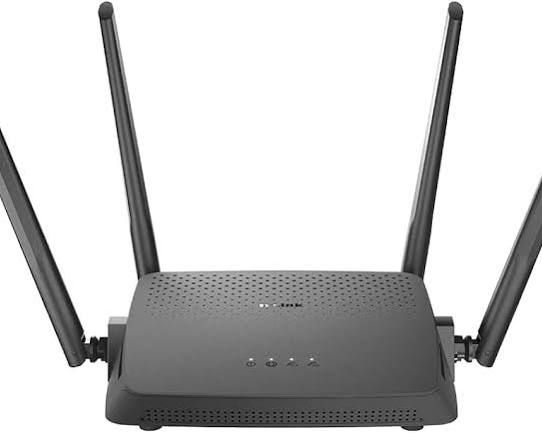
Improving Wi-Fi coverage in a larger home usually starts with better access-point placement, not a faster internet plan. Put the main router in a central, open location when possible, measure where signal or throughput actually drops, then add wired access points or a well-planned mesh system for areas the primary router cannot serve reliably.
Summary: Move the router away from corners and obstructions, update its firmware, test performance room by room, and separate internet-speed problems from Wi-Fi coverage problems. For large or multi-story homes, multiple access points are often more effective than trying to make one router reach everywhere.
Tools and Prep Before You Change Anything
You need a phone or laptop for testing, access to the router’s settings, the router model and internet-plan details, and a simple floor plan or notes showing problem rooms. An Ethernet cable is useful for comparing wired speed with Wi-Fi. If you are considering mesh nodes or wired access points, identify available Ethernet jacks, coax runs, power outlets, and practical mounting locations.
Before making changes, record a baseline. Test near the router, then in distant rooms at roughly the same time of day. A speed test can be helpful, but also pay attention to dropped video calls, slow device response, and whether the problem affects every device or only one.
Step 1: Separate Internet Problems From Wi-Fi Problems
Connect a computer by Ethernet if possible and compare that result with Wi-Fi close to the router. If the wired connection is also much slower or unstable, the issue may involve the modem, internet service, cabling, or provider rather than wireless coverage. If wired service is healthy but distant rooms are weak, focus on the wireless network.
Do not chase a single benchmark number. Wi-Fi performance changes with device capability, interference, channel use, walls, distance, and neighboring networks. Your goal is reliable performance for the applications you use, not the highest screenshot.
Step 2: Reposition the Main Router
A router placed at one end of a large house must push signal through more walls before reaching the opposite side. The Federal Communications Commission’s home network tips recommend a central location to improve coverage and note that extenders or mesh routers can help in larger homes.
Place the router in an open location rather than inside a cabinet, behind a television, on the floor, or next to large metal objects. A higher shelf can help in some rooms. Keep it away from dense obstacles and devices that create interference. If the internet line enters the house in a poor location, a longer Ethernet run from the modem or gateway may allow a better router position.
Step 3: Update and Secure the Network
Coverage work is a good time to review security. Update router firmware, use a strong unique admin password, and choose current encryption supported by your equipment. The Federal Trade Commission’s home Wi-Fi security guidance recommends WPA3 Personal or WPA2 Personal, changing default credentials, keeping router software current, and disabling unnecessary features such as remote management or WPS when appropriate.
Security settings can affect compatibility with very old devices, so document what you change. A guest network can also isolate visitors from your primary network and may help you manage smart-home devices more deliberately.
Step 4: Decide Between Mesh, Extenders, and Wired Access Points
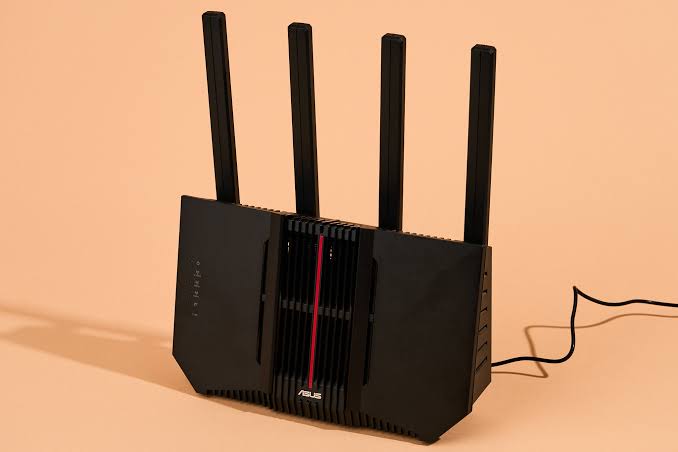
A mesh system uses multiple coordinated nodes to cover a larger area. It is attractive when running Ethernet is difficult and you want one managed network. Placement still matters: a mesh node cannot relay a strong connection if it sits in the same dead zone as the device you are trying to help.
A range extender can be inexpensive, but it may create a separate network name or reduce performance depending on design and backhaul. It is best used for a limited coverage gap, not as a cure for an entire multi-story home.
Wired access points use Ethernet backhaul and are often the most predictable option when cabling is available. They let each access point communicate with the network over wire instead of consuming wireless capacity for the return path.
Step 5: Place Secondary Nodes Strategically
Do not place a mesh node at the farthest possible corner. Put it between the main router and the weak area where it still receives a strong upstream signal. In a two-story home, a stairwell or open landing can sometimes provide a better path than stacking nodes through dense floors and mechanical spaces.
Test after every placement change. Move one node at a time and note the result. Small changes in height or room position can matter. If the mesh app reports backhaul quality, use that information as one signal, but confirm with real device use.
Step 6: Use Bands and Channels Intentionally
Modern routers may steer devices between frequency bands automatically. In general, higher-frequency bands can provide higher throughput at shorter range, while lower-frequency Wi-Fi can travel farther and penetrate some obstacles better. Actual behavior varies by standard, device, and environment.
Avoid forcing a complicated manual channel plan unless you know why you are doing it. In dense neighborhoods, neighboring networks can change throughout the day. Automatic channel selection often works well on current equipment, while advanced users may use analyzer tools to identify persistent congestion.
Troubleshooting Common Coverage Problems
If one room remains poor after adding a node, check what sits between the node and room: masonry, foil-backed insulation, metal ductwork, mirrors, appliances, and dense utility areas can all affect radio paths. If only one device struggles, update that device and compare it with another in the same location.
If performance drops only during busy evening hours, the limitation may be service congestion or total network demand rather than coverage. If calls fail while moving between nodes, review roaming settings and firmware. If smart devices disconnect after a security change, confirm their supported band and encryption requirements.
Plan Around Renovations and Home Layout
Network improvements are easier when walls or floors are already open. If you are replacing surfaces, the guide to DIY-friendly flooring choices can help coordinate the renovation sequence so Ethernet or low-voltage cabling is considered before finish work closes access.
Physical security and networking increasingly overlap because cameras, doorbells, and sensors may rely on Wi-Fi. Review sliding-door and basement-window security before deciding where cameras or sensors should go. For exterior nodes or seasonal equipment, spring mulch and edging work is also a good reminder to protect buried or exterior cabling from landscaping tools.
Build Coverage in Layers
Start with the main router, verify the internet connection, improve placement, then add the fewest additional access points needed for reliable coverage. Test after each change and document passwords, node locations, and cabling. A larger home is usually easier to serve with several well-placed radios than with one router operating from a poor corner.
This smart-home content is for informational and educational purposes only. Follow manufacturer instructions, protect account credentials, and use qualified low-voltage or electrical professionals where cabling, power, or local code requires it.